Tasks · 3 min read
Campsite staff task management: from the back office to the team’s phones
Published
On a campsite, the day fills up with small jobs: checking a pitch, fixing a light, getting the equipment ready for an activity. If they travel by message, on paper notes or by word of mouth, sooner or later two questions come up: who’s handling it? and is it done yet?
With doit.camp, management plans in the back office and the team works from their phones with the Staff App, on the same task.
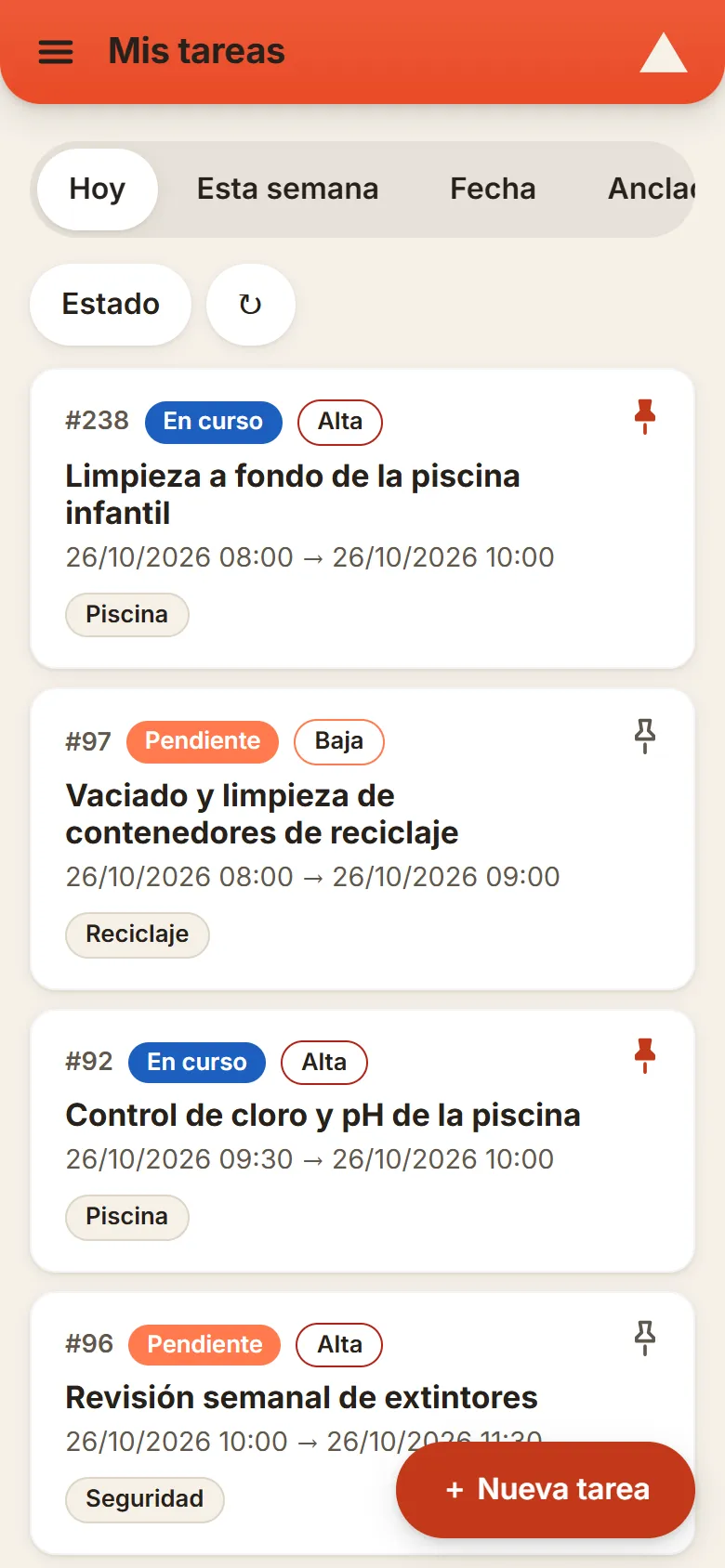
Their day, in one list
Each team member opens “My tasks” and sees what they have today, this week, on a specific date or what they have pinned. Each card shows its number, status, priority, time, location and tags. A status filter lets them keep only what is still open.
The Staff App installs from the browser, without going through an app store. And, depending on the permissions the campsite has given each person, the team can also create tasks from their phone.
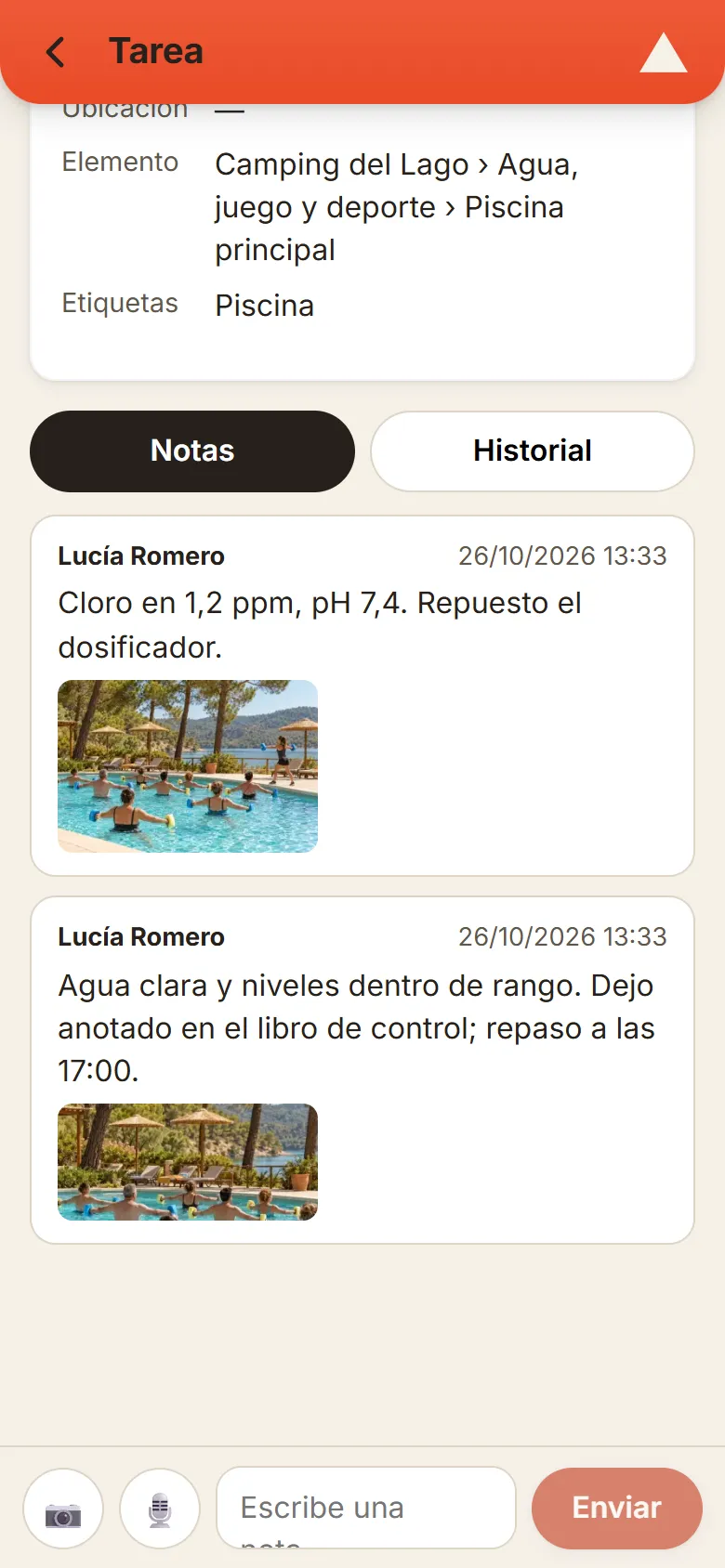
A photo says more than a message
When they open a task, team members change its status following the flow the campsite has defined, check dates, assignees, location and property item, and leave notes: text, photos from the camera or gallery, and audio recordings. That way, what has been done doesn’t rely on an “I’ve done it” said in passing.
A history tab keeps track of status and assignment changes, so you know what happened.
The whole week at a glance
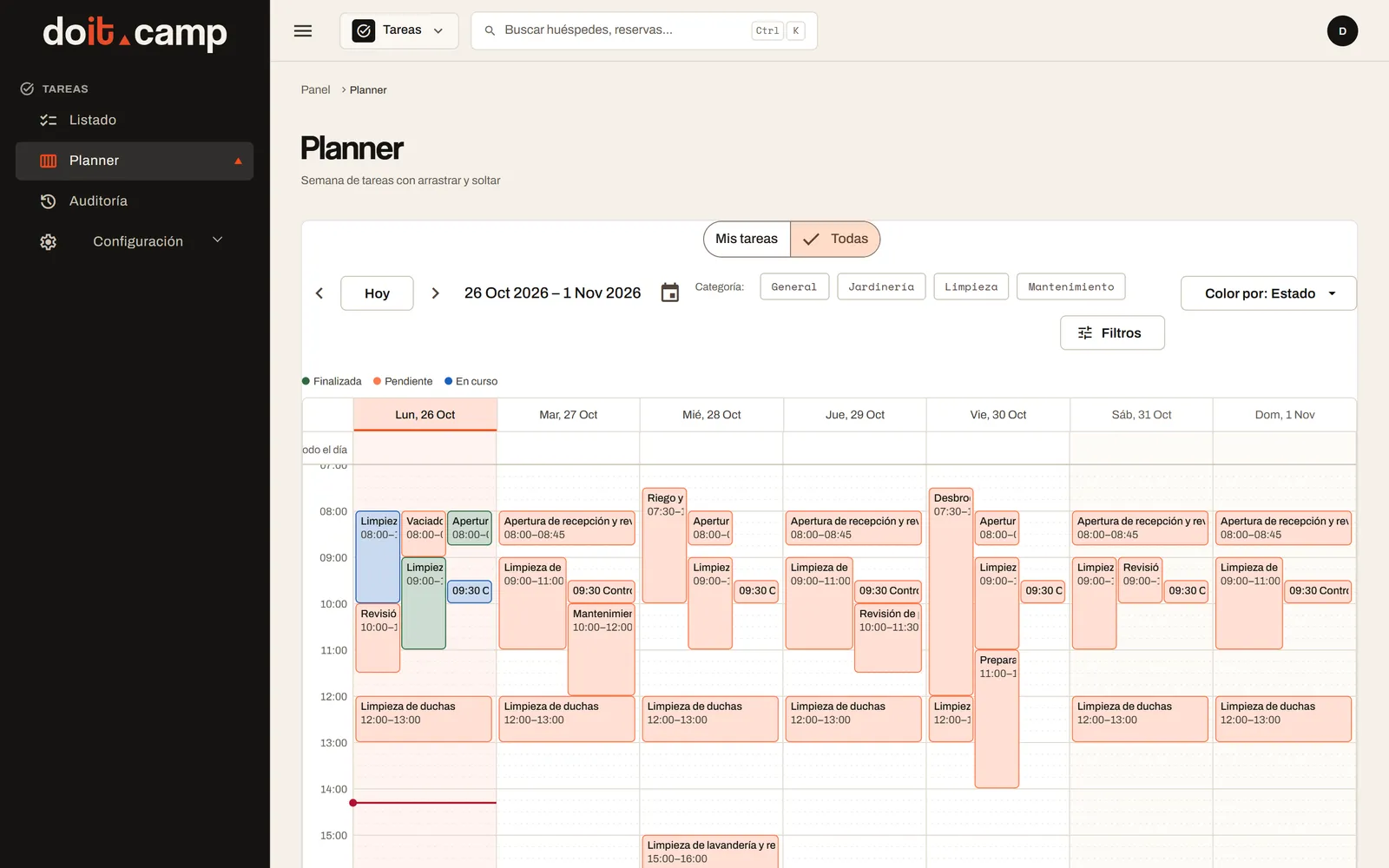
In the back office, management has a filterable list (what, who, when and where) and a weekly planner. In the planner, you reschedule by dragging and colour tasks by status, category or priority, to see at a glance where the workload is.
From an incident’s detail page, the team can create a task or link an existing one. An activity session can have several linked tasks, for example to get the space or the equipment ready.
Your statuses, your rules
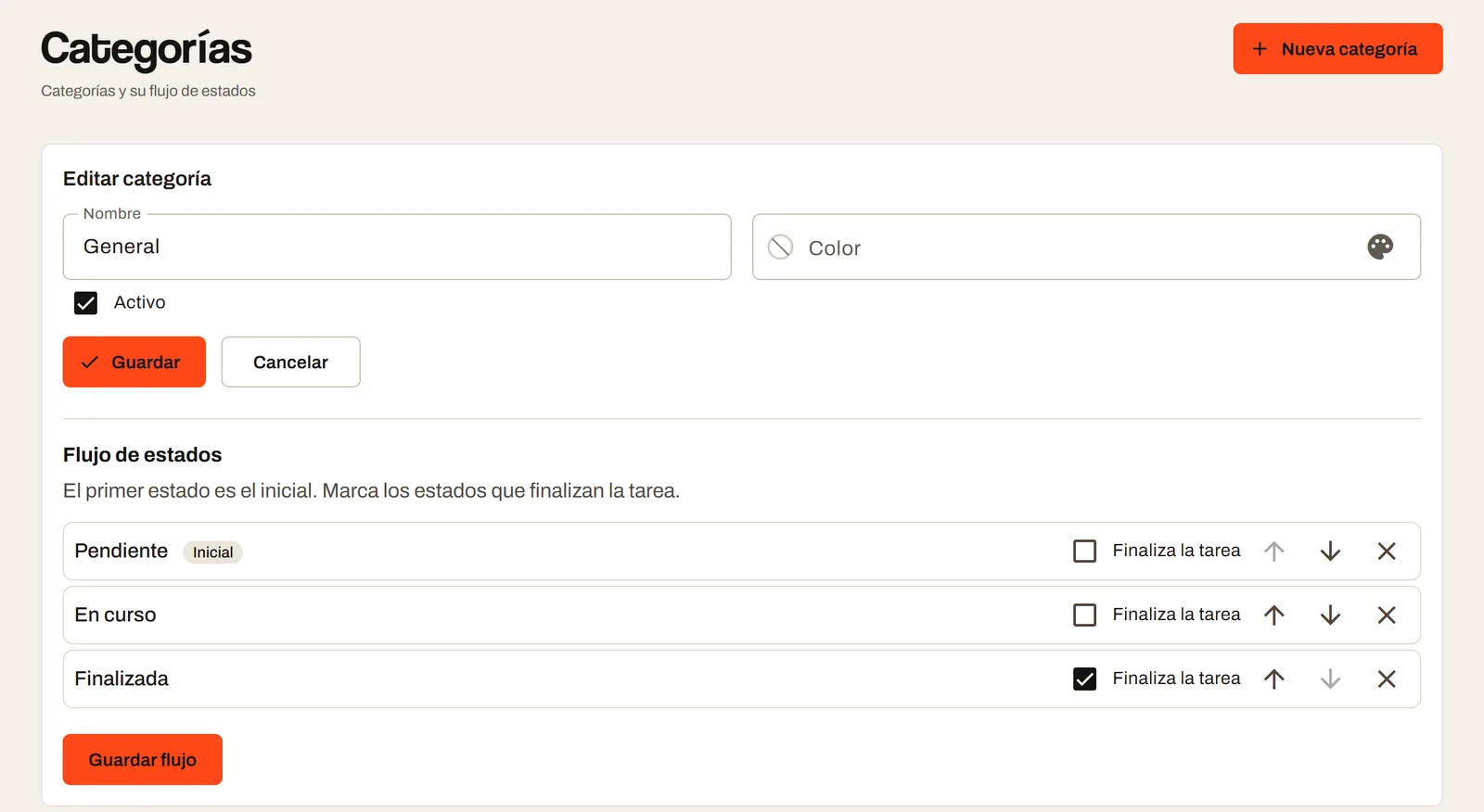
Every campsite works its own way. That’s why statuses, categories, priorities and tags are set up in the back office. Each category can have its own status flow, with a starting status and the one that closes the task. When the module is switched on, the campsite starts with a few basic values: Low, Medium and High priorities; To do, In progress and Completed statuses; and a General category.
Permissions are assigned per person: who can create, assign, view all tasks or only those of certain colleagues, change dates or manage. And the audit log keeps a record of every change.
One team, one task
Management creates and assigns; the team gets it done and records it; then the history is reviewed. All on the same task, in the back office and in the Staff App.
If your campsite still hands out jobs by message or on paper, this is a good place to start getting them in order.
Frequently asked questions
How does the team see its tasks?
In the Staff App, on their phone. The “My tasks” section groups today’s tasks, this week’s, those for a specific date and the pinned ones.
Do they need to install an app from a store?
No. The Staff App installs from the browser as a web app (PWA), without going through an app store.
Can we use our own statuses and categories?
Yes. The campsite defines its own statuses, categories, priorities and tags. Each category can have its own status flow, with a starting status and the one that marks the task as completed.
Who can create, assign or view tasks?
It depends on the permissions the campsite sets for each person: create, assign, view (all tasks or only those of certain colleagues), change dates or manage.
Can a task be linked to an incident or an activity?
Yes. From an incident’s detail page in the back office, the team can create a task or link an existing one; it is not created automatically. An activity session can also have several linked tasks.
Is there a record of what was done?
Each task has a history with its status and assignment changes, and the back office audit log records changes, with filters. In the notes, the team can attach photos and audio.
Shall we organise your team’s tasks?
Tell us how your campsite hands out jobs today and we’ll show you how they would look in the back office and the Staff App.
